In-Person Tech Training For Seniors
Finding local, in-person tech training for seniors is key to staying connected and independent. This guide helps you discover classes and support systems. It focuses on making technology accessible and stress-free for older adults.
Understanding In-Person Tech Training for Seniors
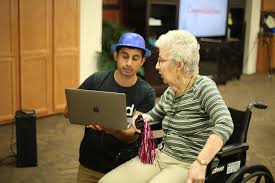
In-person tech training is different from watching a video. It means learning with a real person. This teacher is right there with you.
They can show you things step-by-step. They can answer your questions right away. This is super helpful for new computer skills.
It is also great for using smartphones. Many seniors find this hands-on approach much easier. They get to practice while someone guides them.
This builds confidence quickly.
Why is this type of training so important for seniors? The digital world is growing fast. From banking to doctor visits, much is now online.
Not knowing how to use these tools can feel isolating. It can also be frustrating. In-person classes offer a safe space to learn.
You are not alone. You meet other people learning too. It’s a chance to make new friends.
It is also a way to keep your mind active and engaged.
What will you learn? Most classes cover the basics. This includes how to turn on a computer.
It covers using a mouse and keyboard. You will learn to open programs. You will learn to browse the internet safely.
Many courses also teach email. They teach how to send messages and photos. Some focus on smartphones.
Others might teach how to use video calls. You can learn to use apps. You can even learn about online safety.
This helps you avoid scams.
My Own Tech Learning Journey
I remember when my own grandmother, Betty, first got a tablet. She was so excited. She wanted to see pictures of her great-grandkids.
But the sleek device felt like a black box. She would call me in a panic. “The screen went black!” she’d exclaim.
Or, “How do I find that funny cat video again?” It was clear she needed more than just a quick call. She needed someone patient. She needed hands-on help.
I signed her up for a local senior center class. It was a small group. The instructor was a kind woman named Carol.
She moved slowly. She repeated things often. Betty learned to swipe.
She learned to tap. She learned to zoom in on photos. I saw her confidence grow each week.
She stopped calling me in a panic. Instead, she’d call to say, “Guess what I just learned!” It was a wonderful transformation.
That experience showed me the power of in-person learning. It is not just about the skills. It is about feeling supported.
It is about overcoming that initial fear. It is about gaining independence. Betty’s journey inspired me to write this.
I want other seniors to have that same chance. They deserve to explore the digital world without fear.
What Seniors Learn in Tech Classes
Basic Computer Skills: Turning on/off, mouse, keyboard.
Internet Basics: Browsing, searching, safe web practices.
Email: Sending, receiving, attachments.
Smartphones & Tablets: Navigation, apps, calls, texts.
Video Calls: Connecting with loved ones (Zoom, FaceTime).
Online Safety: Avoiding scams, passwords.
Where to Find Local Tech Training Classes
Finding these classes is easier than you might think. Many places offer them. You just need to know where to look.
Community centers are often a great start. They are designed to serve local people. They often have programs for seniors.
These programs can include technology classes.
Libraries are another fantastic resource. Many public libraries have computer labs. They also offer free classes.
These classes are usually small. They are taught by librarians or volunteers. The focus is often on basic computer skills.
They can also help with using library e-books. Sometimes, they even offer one-on-one help sessions.
Senior centers are specifically for older adults. They are built for community and learning. You will find a friendly atmosphere there.
Many senior centers partner with tech groups. They might have classes on site. Or they can point you to nearby options.
These are often very affordable or free.
Some adult education programs also offer tech classes. These might be through local schools or colleges. The classes can be more structured.
They might cover a wider range of topics. Check their schedules. They often have courses for adults of all ages.
What about private computer training centers? Yes, these exist too. They might cost more.
But they often have very specialized classes. They can offer one-on-one tutoring. If you have specific needs, this could be a good choice.
Just be sure to ask about their experience with seniors.
Quick Scan: Finding a Class
- Check Your Local Library: Many offer free computer classes.
- Visit Senior Centers: They often have dedicated tech programs.
- Look at Community Centers: Broad range of activities, including tech.
- Adult Education: Local schools might have courses.
- Ask Friends: Word-of-mouth can lead to hidden gems.
What to Expect in a Senior-Focused Tech Class
The best tech classes for seniors are designed with them in mind. This means the pace is slower. It is not rushed.
The teacher understands that some things are new. They use simple language. They avoid jargon.
You won’t hear lots of complicated tech terms. If they use one, they explain it right away.
Class sizes are usually small. This is important. A small group means more personal attention.
The teacher can see if you are struggling. They can help you one-on-one. You don’t feel lost in a crowd.
You have time to practice what you learn. The teacher will guide your hands if needed. They will help you click the right buttons.
The curriculum is often tailored. It focuses on what seniors need. This might be email for family photos.
It could be using a doctor’s patient portal. It could be simple web browsing. Or it might be video calls to see grandkids.
They focus on practical, useful skills. They don’t teach things most people don’t use.
There is a strong emphasis on safety. Teachers will talk about internet scams. They will teach you how to spot fake emails.
They will explain password security. This knowledge is vital. It helps protect you and your information.
You learn to be confident online. You learn to be cautious too.
The atmosphere is usually very friendly. It’s a place to learn without judgment. Everyone is there to learn.
People share their struggles. They also share their successes. You might find yourself laughing with classmates.
You build a sense of community. This support makes learning much more enjoyable. It makes it feel less like a chore.
Classroom Contrast: Senior vs. General Tech Classes
Myth: All computer classes are the same.
Reality: Senior-focused classes are slower, use simpler language, and cover practical skills like email and video calls. General classes might be faster and more technical.
Choosing the Right Device for Your Training
Sometimes, you might wonder which device is best to learn on. Many classes let you choose. Some may even provide devices.
But it helps to think about what you want to use most.
Computers (Desktops/Laptops): These are great for longer tasks. Typing emails feels natural. Writing documents is easy.
Browsing the web on a big screen is comfortable. Laptops are portable. Desktops stay put.
They offer a full keyboard and mouse experience. This is often what people are most used to from work.
Tablets (like iPads or Android tablets): These are very user-friendly for many. They use touch screens. You tap and swipe.
They are good for reading. They are great for watching videos. They are excellent for simple games.
They are lightweight and easy to hold. Many seniors find tablets the easiest to start with.
Smartphones: These are small, powerful computers in your pocket. They are perfect for calls and texts. They are good for quick internet checks.
They are great for photos. They can run many apps. Learning a smartphone is very practical for daily life.
It keeps you connected on the go.
When you look for classes, ask what devices they teach. Do they offer classes on computers? Or maybe tablets?
Or smartphones? Some classes focus on just one. Others cover a mix.
If you already own a device, see if you can bring it. This way, you learn on the actual tool you will use.
It is also good to think about your eyesight. Larger screens are generally easier to see. Buttons and icons on touch screens can also be made bigger.
Ask the class instructor for advice. They can help you pick the best device for your needs.
Device Quick Guide
- Computer: Best for typing, longer tasks, big screen.
- Tablet: Easy touch screen, great for reading, apps, lightweight.
- Smartphone: Portable, for calls, texts, quick checks, photos.
Making the Most of Your Tech Training Experience
Attending a class is just the first step. To really learn, you need to practice. Think of it like learning to drive.
You can’t just take one lesson. You need to get behind the wheel often.
Take Notes: Bring a small notebook and pen. Write down the steps for tasks. This is a great reference later.
Even simple things like “click the green button.” It helps jog your memory.
Ask Questions: Never be afraid to ask. The teacher is there to help. Your question might be what someone else is wondering too.
It is better to ask and understand than to stay confused.
Practice at Home: Try to use your device every day. Even for just a few minutes. Open an app.
Send a text. Look up something on the internet. Regular practice makes skills stick.
Find a Buddy: If a friend is also taking the class, practice together. You can help each other. You can try new things and talk about them.
This makes learning fun.
Be Patient with Yourself: Learning new things takes time. There will be moments you feel stuck. That’s okay.
Take a deep breath. Try again. Celebrate the small wins.
Every new skill learned is a victory.
Explore Beyond the Basics: Once you are comfortable, try a bit more. Explore different apps. Look at the settings.
See what else your device can do. This is how you grow your confidence. It is how you discover new ways to use technology.
The Importance of Online Safety and Digital Citizenship
Learning to use technology is exciting. But it also means being aware of the dangers. Online safety is a huge part of modern tech training.
It is not just about knowing how to click. It’s about knowing how to click safely.
Scammers are very clever. They try to trick people. They send fake emails.
They call pretending to be from a company. They might ask for your bank details. Or your Social Security number.
They might say you have won a prize. Or that your computer has a virus. Real companies rarely do this.
Training will teach you to recognize these signs.
Strong passwords are key. A password is like a key to your online accounts. It should be hard to guess.
Mix letters, numbers, and symbols. Never use your birthday. Or your pet’s name.
And never share your passwords. Teachers will guide you on creating good ones.
Privacy settings are also important. On social media, you can control who sees your posts. You can limit what information is public.
Learning these settings helps protect your personal life. It keeps your information more secure.
Digital citizenship means being a good online citizen. It means being respectful. It means not spreading rumors.
It means thinking before you post. It’s about using technology responsibly. These classes help build that awareness.
They ensure you can navigate the digital world with confidence and security.
Safety First: Key Takeaways
- Be Suspicious: If an offer sounds too good to be true, it probably is.
- Never Share Personal Info: Bank details, SSN, passwords are private.
- Use Strong, Unique Passwords: Protect your accounts.
- Check Email Senders: Look for odd email addresses.
- Think Before You Click: Links can lead to trouble.
When Technology Feels Like a Hurdle, Not a Help
It’s totally normal to feel frustrated sometimes. Technology changes so fast. One day you learn something.
The next day it looks different. This can make you want to give up. Many seniors feel this way.
They might think, “I’m too old to learn this.” Or, “This is just too complicated for me.”
But here’s the thing: you are not too old. And it’s not too complicated. It just needs the right approach.
That’s where in-person training shines. A patient teacher can break it down. They can show you things in a way that makes sense.
They can show you how a new feature actually helps you.
For example, maybe your phone updated. The buttons moved. It feels all wrong.
A good class would show you the update. They would point out the new helpful features. They would show you how to find what you need again.
They turn the confusion into understanding.
What if you worry about making a mistake? Like deleting something important? Or sending a message to the wrong person?
That’s a common fear. In a supportive class, you can practice those things. You can learn what happens if you click the wrong thing.
You learn how to undo it. Or how to fix it. This builds confidence.
It shows you that mistakes are learning chances.
The key is to keep trying. And to find the right support. A good instructor can make all the difference.
They see your potential. They encourage you. They help you see that technology can be a friend.
It can make your life easier. It can help you stay connected.
Normal vs. Concerning Feelings about Tech
Normal: Feeling a bit confused at first. Needing to ask questions often. Finding some tasks tricky.
Concerning: Feeling completely lost and unable to follow. Wanting to give up entirely. Feeling intense anxiety or fear around the device.
If you feel concerning emotions, seek out a patient, beginner-focused class. A good teacher can ease these fears.
Connecting with Others Through Technology
One of the biggest joys of learning tech skills is connection. It opens doors to talking with people. It brings loved ones closer.
Video calls are a perfect example.
Imagine seeing your grandchild’s face. You can talk to them as if they are in the room. You can see their smile.
You can hear their laugh. This is possible with apps like Zoom or FaceTime. Learning how to start and join these calls is a common class topic.
It makes a world of difference.
Email is another powerful tool for connection. You can send messages. You can share photos of your garden or your cat.
You can send news about your day. It is a quick way to stay in touch. Especially with people who live far away.
Many classes teach you how to write and send emails. They also show you how to receive and reply.
Social media can also be a way to connect. Sites like Facebook let you see what friends and family are doing. You can share updates.
You can join groups with shared interests. While social media can be complex, basic skills like viewing posts and photos are often taught. It’s about finding the right balance for you.
These connections are vital. They combat loneliness. They keep you feeling part of the world.
They enrich your life. Learning tech skills is an investment in your social well-being. It helps you stay a part of your family’s life.
It keeps you connected to your community.
Quick Fixes and Helpful Habits
Here are some simple habits to make your tech learning smoother. These aren’t complex fixes. They are just good ways to approach learning.
- Restart Regularly: If your device seems slow or glitchy, turn it off and on again. This fixes many small problems.
- Keep Devices Charged: Nothing stops learning faster than a dead battery. Plug in your phone or tablet often.
- Use Magnification: Most phones and computers have a zoom feature. Learn to use it to make text and images bigger.
- Take Screenshots: If you see something on your screen you want to remember, take a picture of it (a screenshot). Most devices have a simple way to do this.
- Save Your Work: When writing emails or documents, save your progress often. This prevents losing your work if something goes wrong.
- Don’t Be Afraid to Explore (Carefully): Click around! See what buttons do. Most simple actions can be undone. Just try to avoid clicking on unknown links or downloading strange files.
These small habits build competence. They help you feel more in control of your devices. They make the learning process less stressful.
And more rewarding. Remember, the goal is to make technology work for you.
Frequently Asked Questions About Senior Tech Training
What is the best age to start tech training?
There is no “best” age. You can start learning tech skills at any age! Many seniors find it beneficial to start when they feel ready.
Or when they need to use technology for specific tasks like managing health or staying in touch.
Are tech classes for seniors expensive?
Not always. Many libraries, senior centers, and community centers offer free or very low-cost classes. Private training centers might charge more, but often have payment plans or introductory offers.
It’s worth checking free options first!
What if I have trouble seeing or hearing?
Most good tech classes for seniors are designed with accessibility in mind. Instructors can often adjust font sizes on screens, speak clearly and slowly, and use visual aids. Don’t hesitate to mention any specific needs when you register for a class.
How long does it take to learn basic computer skills?
This varies for everyone. For basic skills like turning on a computer and browsing the web, many people feel comfortable after a few class sessions and some practice. More complex skills take longer.
Consistency in practice is more important than speed.
Can I bring my own device to a class?
Yes, usually! In fact, it’s often recommended. Learning on the device you own means you can practice at home with the exact same setup.
Always ask the class organizer if you can bring your own laptop, tablet, or smartphone.
What if I forget what I learned?
Forgetting is normal! That’s why taking notes is so helpful. Most classes provide handouts too.
The best thing is to practice what you learned soon after the class. And don’t be afraid to ask the instructor or classmates for a quick reminder.
Embrace the Digital World
Learning new technology can seem daunting. But it doesn’t have to be. With the right support and patient instruction, you can master new skills.
In-person tech training offers a friendly, guided way to do just that. It empowers you to stay connected. It helps you manage your life online.
And it opens up a world of possibilities. So take that first step. Find a class.
You might surprise yourself.

Related Posts

Tech Career Coaching Services Near Me
Project Management (Pmp) Prep Classes